
The Chronic Condition Management (CCM) module prompts doctors to create GP Chronic Condition Management Plans (GPCCMP) for patients who may be eligible for Chronic Condition Management MBS Items.
- For the module to work efficiently, the practice should follow the CCM setup guide.
- To support the 1 July 2025 changes, the practice should run Zedmed v38.8.1 or later.
Important: On 1 July 2025, GP management plans (GPMPs) and team care arrangements (TCAs) were replaced with a single GP chronic condition management plan (GPCCMP). The existing MBS items for developing and reviewing GPMPs and TCAs ceased, and new MBS items for the GPCCMP were introduced. Please read our guide to managing this change.
Creating a CCM plan
Check a patient's eligibility for a Chronic Condition Management plan and use a template to initiate that plan. Eligibility may be determined by age, ATSI status, and the addition of a diagnosis to the Problems module. For example, adding a diagnosis of anxiety will make the patient eligible for a mental health care plan. CCM plans are covered by Medicare, and Zedmed can schedule reminders each time a patient is eligible.
Patient eligibility is relevant only to the clinic. If a patient has accessed any care plan at a different clinic, it will not be indicated in the CCM, so PRODA may need to be checked for confirmation.
To create a CCM plan:
- Start an encounter with the patient.
- Select CCM from the Current Encounter menu.

The Chronic Condition Management screen will open.
• All the CCM items are listed, whether or not the patient is eligible for them.
• Eligibility column - if the patient meets the criteria defined for that item.
• Date Restrictions column - if the patient was billed for this item within the time frames prescribed by Medicare.
• Last Service column - the last date that the item was billed. - Use the Associated Templates field to select the template you want to use for a plan.
These templates are associated with the selected item to make it easy to access the relevant template without searching all of the templates used by the practice. - Select Run.
Important: These plans must use the GPCCMP plan template from Quickdocs in Clinical.- GP Management Plan Review (732)
- GP Management Plan (721)
- Team Care Arrangements (723)
- Team Care - Contribution (Age Care) (731)
- Team Care Review (732)
- Multidisciplinary Team Care Contributions (729)
Use Quick documents or Quick document Search to locate the template.
- Fill in the care plan template.
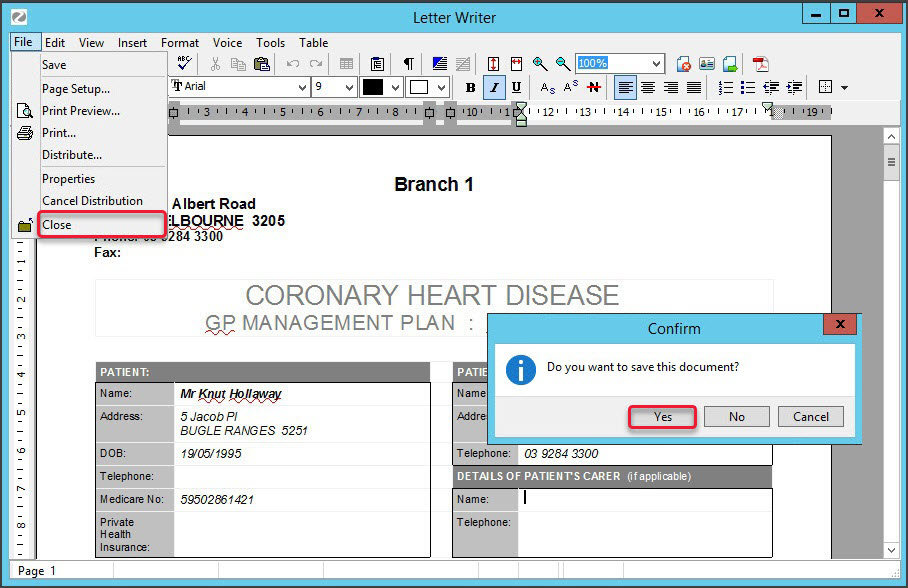
- Once the template has been filled in, select File > Close.
- Select Yes to save the document when prompted.
 When the template is saved:
- The Associated Recalls screen opens.
- A note is added to the Current Encounter stating the item has been used in the consultation.
- Use the Associated Recalls screen Add button to add a recall for the patient when they are eligible for the plan again.
- Select Close to save and exit.
Once the temple has been saved, the care plan can be carried out, for example, with a specialist, pathology, or radiology referral.
CCM is linked to billing and adds the care plan to the encounter's billing. You can see this if you open a patient from the waiting room.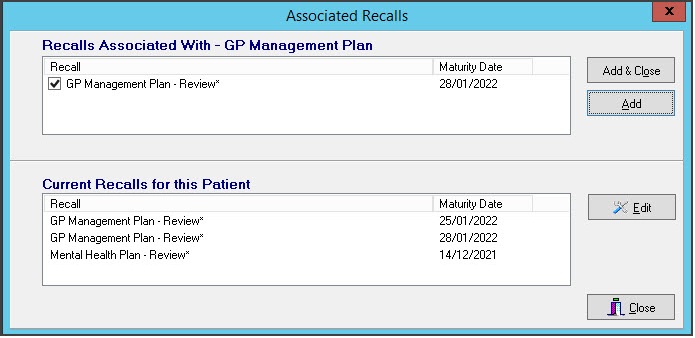


The template will open pre-filled with the patient data
 When the template is saved:
Understanding of the CCM columns
Eligibility column - shows if the patient meets the criteria defined for that item.
- Eligible: the patient meets the Medicare criteria for this item.
- Ineligible: the patient does not meet the Medicare for this item.
- Excluded: the patient is excluded from being eligible for this item by their age.
- Unknown: this is for some items that do not have very specific criteria, making it difficult to determine eligibility.
Date Restrictions column - shows if the patient has already been billed for this item within the time frames prescribed by Medicare .
The last date a relevant item has been billed is displayed to assist in this decision-making process.
- Already Billed: patient has been billed for this or another related item within the date restrictions specified by Medicare.
- Within Date restrictions: patient is within the time restrictions recommended by Medicare Australia for billing this item.
- Past recommended date: patient has passed the date recommended by Medicare Australia for billing the item.
- Not Applicable: This item is not applicable to the patient, so the date range is not relevant.
The user is free to take whatever action they deem necessary – the information is displayed only as a guide.
Also available is a drop-down list of any document templates associated with the practice, with the selected item highlighted. This allows the health professional to access the relevant template without searching through the practice's complete list of templates.