
The Doctors App integrates with your Zedmed server in real-time so practitioners can access appointments and results. This guide explains what is required to support the Doctors App and to install it on practitioners' phones.
To learn more, see the Doctors App user guide.
Setting up the API and access
Zedmed Support performs these steps for both Zedmed On-Prem and Zedmed Cloud customers.
Enable the API connection:
Once this is complete, an API Gateway Key will appear on the Practice Details screen.
Check doctors API access:
- Go to Zedmed's Utilities tab > Security.
- Select the Roles tab.
- Open the doctor's role.
- Ensure the API Access function is listed under Included Functions.
If it is not, expand API Access under Available Functions and double-click Full API Access to move it to Included functions.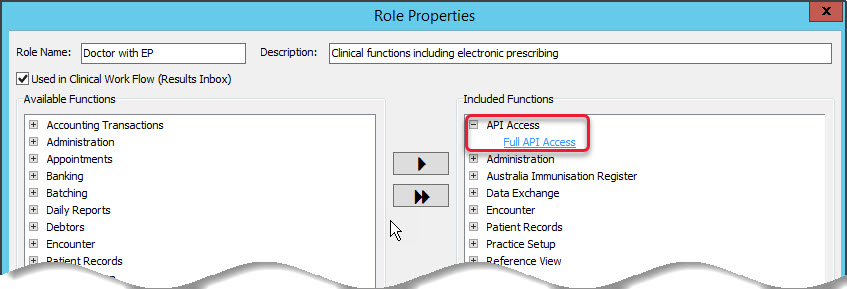
Install the Doctors App (non-SSO user)
These steps apply to both Zedmed On-prem and Zedmed Cloud customers who do not use Single Sign-On (SSO).
- For Zedmed Cloud customers, contact Zedmed Support to set up (contact information).
- For Zedmed on-prem customers, contact your practice manager or a user with access to the Zedmed Securite module.
In this section, you will install the Doctors App on a phone, use a QR code to connect it to Zedmed and set a pin to enter when opening the app.
Important: If the Doctors App is installed and you need to scan a new QR code, remove the Doctors App before following the steps below.
To add the app to a doctor's phone:
- Go to Zedmed's Utilities tab.
- Select Security.
The Zedmed Security Roles and User screen will open. - Select the Staff tab
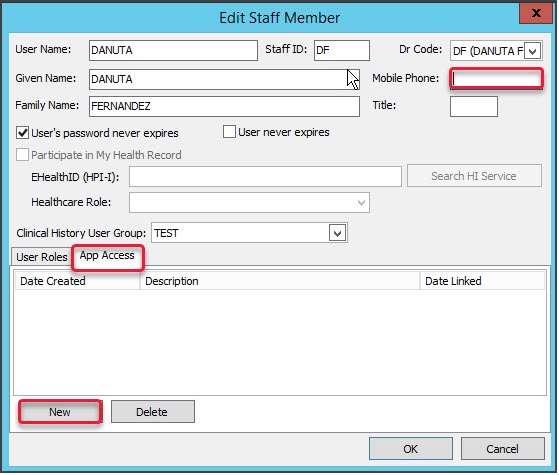
Open the doctor's profile
The doctor will need to be present with their phone. - Enter the doctor's mobile number into the Mobile Phone field.
- Select New.
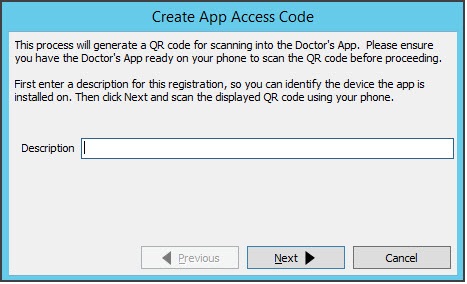
- Enter a description for the phone.
 A QR code will be displayed for use in step 8.
Don't scan the code yet.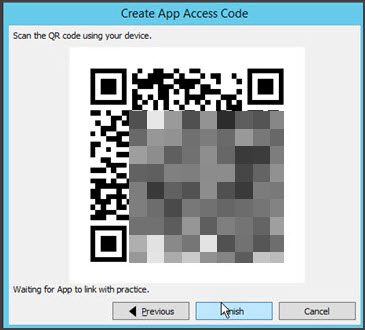
- Download the Doctors App from the Apple App Store or Google Play onto your (the doctor's) phone.
- Open the Doctors App.
A QR code reader will open on the phone. -
Scan the QR code using the Doctors App.
The app will then confirm the doctor's identity and permissions. - When prompted on your phone, log in using your Zedmed application credentials.
You will receive a text message with an access code, and the Doctors App will display a code entry screen.
Do not use any VM or Cloud credentials for this login. - Enter the code provided.
Access will be enabled, and you will be prompted to provide a 4-digit login for the Doctors App. - Enter your pin, and use it each time you open the Zedmed Doctors App.
The app will now open and display the available clinical information
 A QR code will be displayed for use in step 8.
Demo of Doctors App setup.
Install the Doctors App (SSO users)
These steps are for practices that use Zedmed Single Sign-On (SSO). This will, in most cases, be a Zedmed Cloud user.
The practitioner performs these steps themself under My Options.
Important: Zedmed customers who have the Doctors App installed and want to update it for Single Sign-On (SSO) will first need Remove the Doctors App before following the steps below.
- In Zedmed, open Clinical
- Select My Options > Function Selections tab.
- Select Show SSO QR Code.
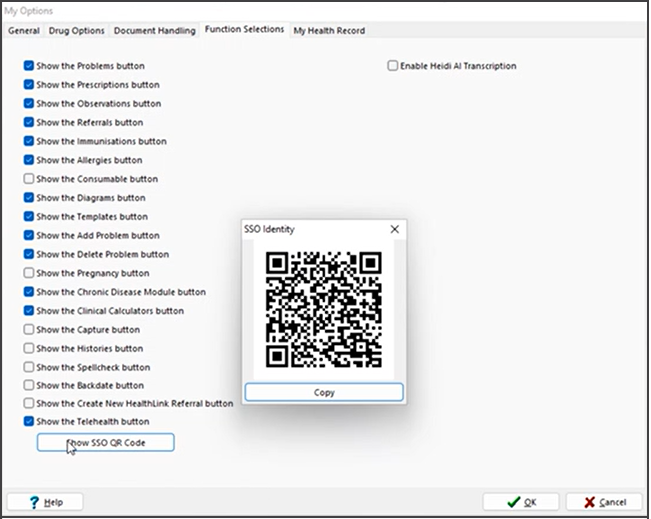
- Install the Doctors App:
- Open the Doctors App.
- The app will open a QR code reader.
- Scan the QR code using the Doctors App.
- Provide your (<username>@zedcloud.com.au) username and password, and verify if prompted.
- Duo will send a push notification to your phone to Approve.
The Doctors App is now ready to use. You will be prompted to tap Approve access every 24 hours.
Clearing the Doctors App
For an iPhone:
- Go to Settings > General.
- Tap on iPhone Storage.
- Click the Doctors app.
- Tap Offload App.
- Tap on Delete APP.
For Android:
- Go to Settings > Apps.
- Find and select the Doctors App.
- Tap Storage.
- Tap Clear Data.