
This guide covers closing banking sessions and batches in Zedmed. Closing the banking creates a Bank Deposit Sheet totaling each payment type since the last closure. Always verify that your Batch / Session Details Reports match your actual receipts before closing. A batch may be broken into sessions and closed periodically throughout the day to catch errors early, making the final daily close much faster.
This guide should be used in conjunction with the Best Practice Banking guide.
For explanations on the use of the three banking reports, see the Banking Reports guide.
Banking quickstart
This is a summary of the five steps that you will perform to close your banking. The reports will depend on whether you are closing a session or batch. These steps are explained in further detail in the sections below.
- Reconcile the claims.
- Print the session or batch details report.
Use the report to review and compare the transactions with the EFTPOS receipts. - Resolve any errors and make any required adjustments.
- Run the Close Banking Session or Close Batch report to close the session or batch after any adjustments have been made.
Banking reports video
Our 11-minute quickstart video explains how the reports work and how they can be used!
Print / Close Banking Session
If you have a lot of payments, you can break the day into sessions to review the banking and resolve any errors. Before closing the banking session, run the Session Details Report to compare the amounts shown to the payments received (invoices you have receipted) to ensure an accurate financial record.
To close a banking session:
- In Office, select Banking > Print / Close Banking session.
- Select the correct Banklist.
- Select Screen.
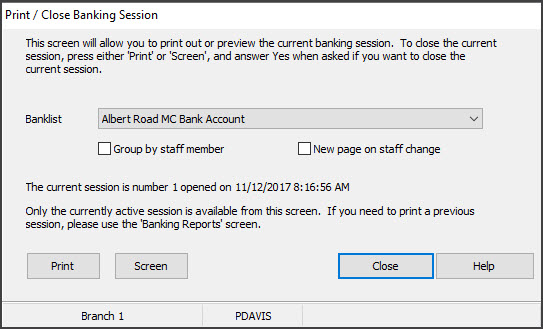
- Select Yes when prompted to close the session.
- A Banking Session Details report displays, print or save if relevant.
Note: Closing a session automatically triggers the opening of a new one. Once a session is closed, it cannot be undone. Please ensure you review and close the current open session prior to finalising the banking batch.
Print Deposit Sheet / Close Batch
Close Batch is used to close off the banking and produce a Bank Deposit Sheet containing the totals for the Cheques, Cash, Deposits and Credit Cards. Before closing, run the Batch Details Report to compare the amounts shown to the payments received (invoices you have receipted) o ensure an accurate financial record.
Considerations:
- This process is relevant even if you are not dividing the day into sessions (you only use a daily banking batch).
- There is no requirement to close the banking each day (or the next morning before you open), but we recommend you do.
- If you don't do daily banking, discrepancies will go unnoticed for an extended period and can be a lot harder to resolve.
- Closing a batch automatically triggers the opening of a new one. Once a batch is closed it cannot be undone.
To confirm and close the day's banking:
- In Office, select Banking > Print Deposit Sheet / Close Batch.
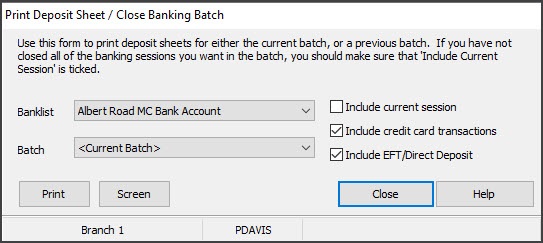
- Select the correct Banklist.
The <Current Batch> is displayed as this is the open batch.
If you are using sessions, untick Include current session, so only the sessions you have reviewed and closed are in the batch. - Select Screen to view the batch.
- Select Yes when prompted to close the batch.
 The Bank Deposit Sheet will display, print or save if relevant.
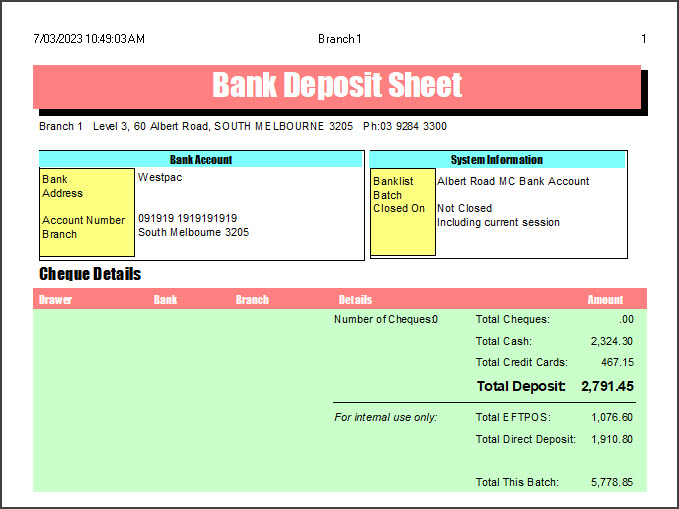
 The Bank Deposit Sheet will display, print or save if relevant.
Correcting closed banking sessions
Once a banking session or batch has been closed, it cannot be reopened.
If a practice needs to adjust/fix an error (such as a duplicate receipted payment), perform the required actions (such as reversing a payment), and the change will be reflected in the current, active banking session. What's important is the banking balances at the end of the cycle (e.g week, month) when you review your practitioner's payments.
If you reverse money in a banking batch for a receipt created in a previous batch, it will show as a cross-session reversal in the Batch Details report. A reversal's negative value is not included in the overall total.
