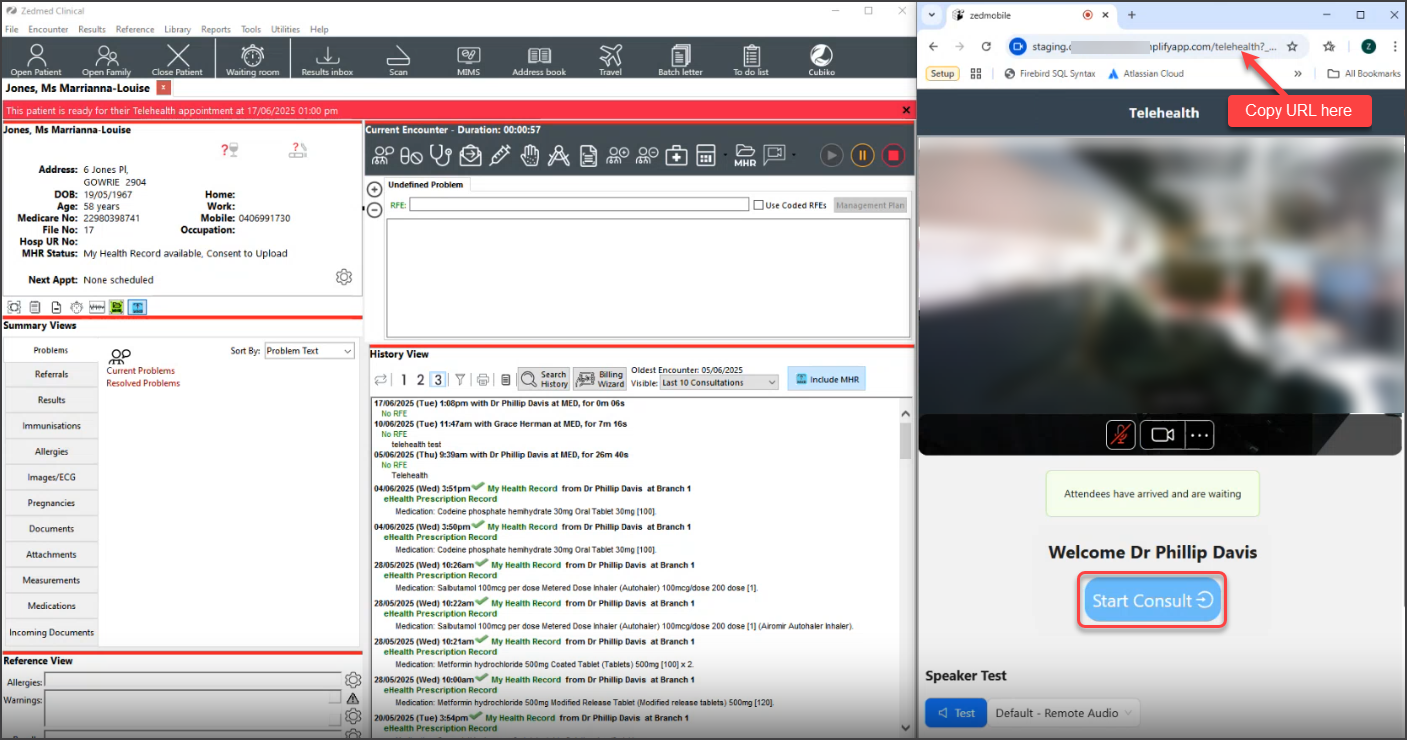
This process is the same as a normal Zedmed encounter, except you open a live video connection in your web browser by copying a URL from the Current Encounter menu's Telehealth button. It also shows the SMS Link to doctor option.
- Monitor the Waiting Room.
Patients automatically attend to the Waiting Room when they open Telehealth on their phone and tap Join. - Select the patient and select Admit.
The patient's record will open, and the Current Encounter menu will include the Telehealth button. - Select the Telehealth button and Copy URL.
- Open your desktop browser and paste the URL into the address bar, and press Enter.
You can resize the browser next to Zedmed (and collapse the left panels) or use a separate monitor.
The first time you use Telehealth on a new device or browser, you will be prompted to allow access to the camera and microphone. Select Allow for this message. If you select Deny, follow the What if I selected Deny instructions. - Select Start Consult.