
HealthShare is Australia's largest Specialist and Allied Health directory and can be used to produce printed referral letters. Requires Zedmed v39.6.4 or later.
Important: HealthShare’s IE11 components have been updated to use Microsoft Edge. Users must upgrade to Zedmed Version 39.6.4 to continue using HealthShare through the Zedmed Address Book integration. Alternatively, users can access HealthShare directly through the HealthShare website.
Considerations
- When you look up an addressee, you will choose the Zedmed Address book or the HealthShare directory.
- HealthShare is for printed referrals only, and it does not support secure messaging (e.g. HealthLink).
- For laboratory referrals, you can use the cc: option to add a practitioner from HealthShare to inform them of the lab request.
- HealthShare's defaults can be configured for the practice.
When creating a letter or referral, the search icon by the addressee opens the Address Book, where you can then select the HealthShare directory.

Zedmed features that open the Address Book include:
- Referral Letters (Addressee and Copy To)
- Pathology Referrals (Copy To)
- Radiology Referrals (Copy To)
- Quick Docs New Letter (To: and Cc:)
- Batch Letters (To: and Cc:)
- Clinical Records (Other Clinicians tab)
To add a HealthShare directory recipient to a letter or referral:
- Open the Zedmed Address book.
In this example, we will use the Referral Letters module. - If the HealthShare tab is not the default, select the HealthShare tab or HealthShare on the dialog prompt.
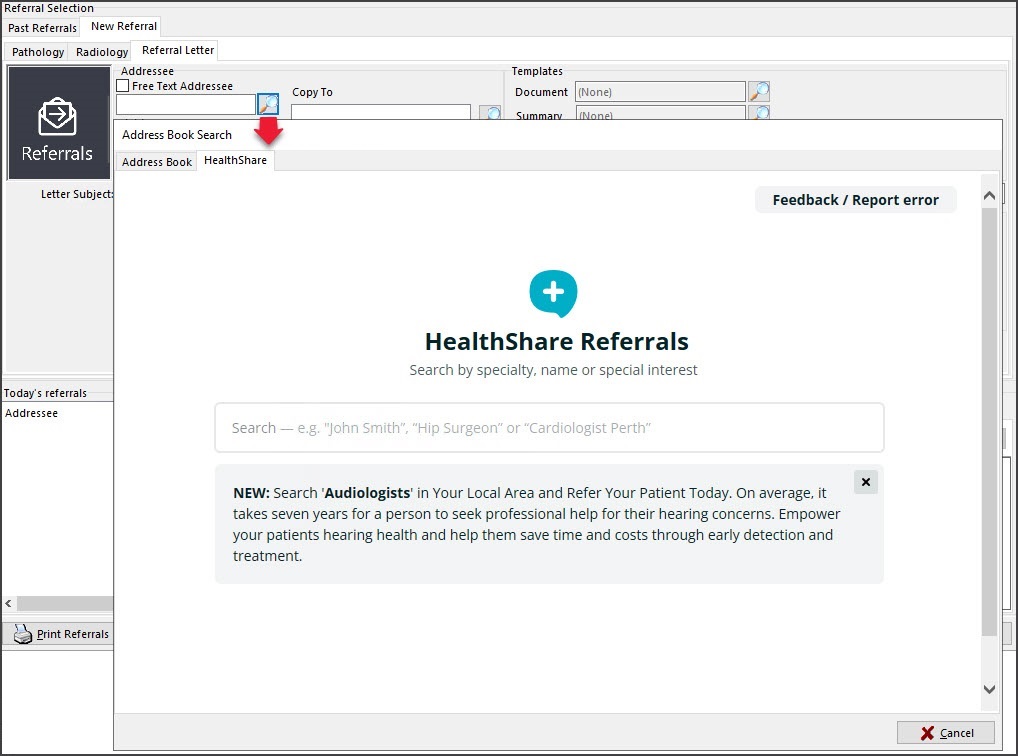
- Search for the practitioner.
When you start typing, a drop-down results menu will appear.
You can type in the:
• Practitioner name
Select a practitioner from the list shown, and their profile will open, as shown in the screenshot below.
• Practice name
Select the practice from the list, then select a practitioner at the practice or use the practice as the recipient.
• Specialty name
Select the specialty and either enter the location to filter the results or select a practitioner from the list.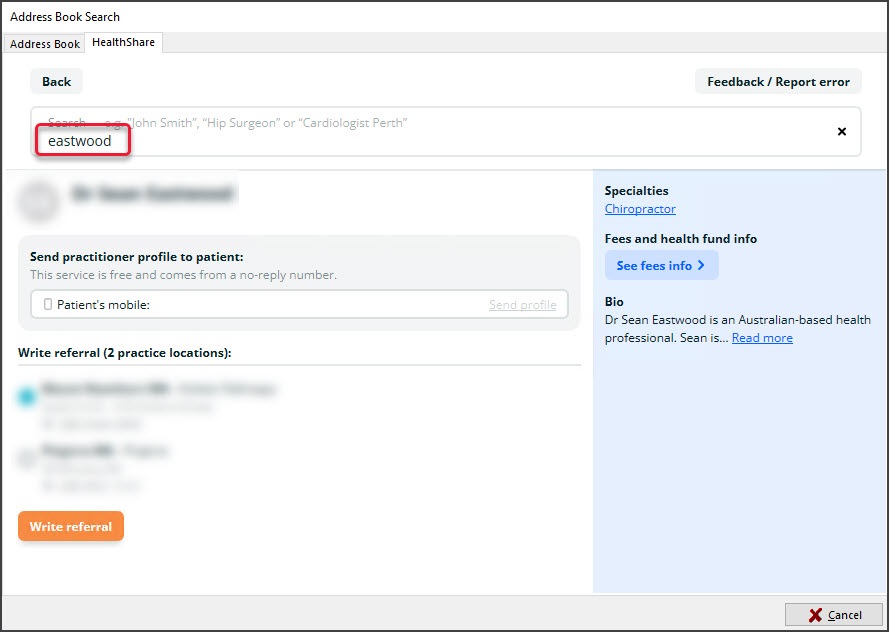
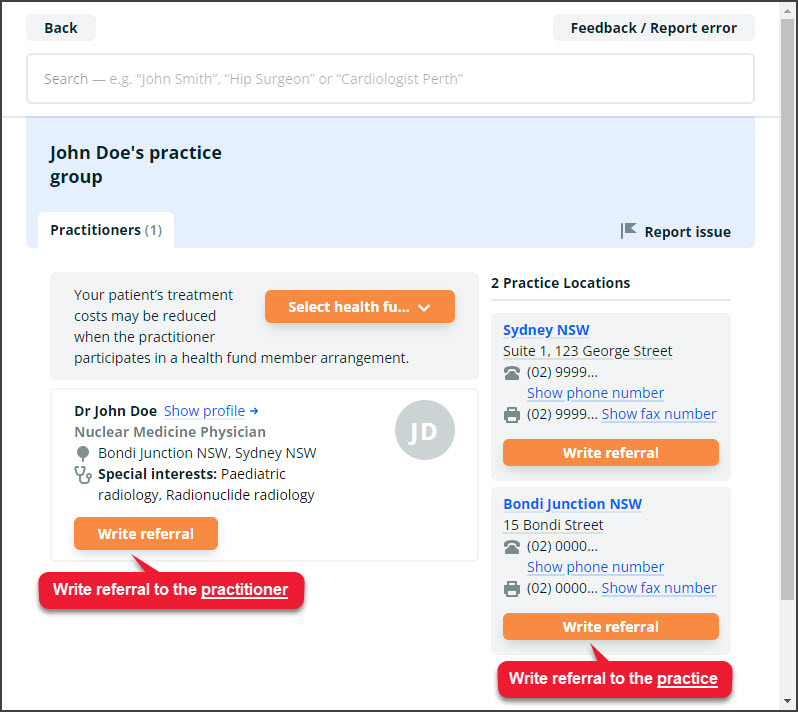
- Select Write Referral or Write Letter
This will be to the practitioner or practice, as shown in the scenarios below for a referral.
There are 3 ways to do this:
Scenario1 : To the practitioner from the practitioner page.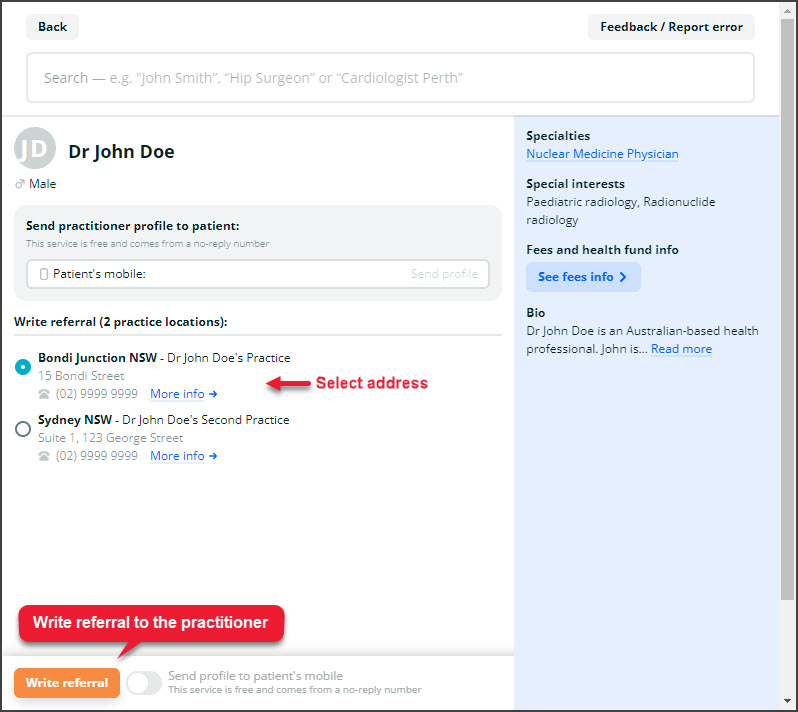 Scenario 2: To the practice or practitioner from the practice page.
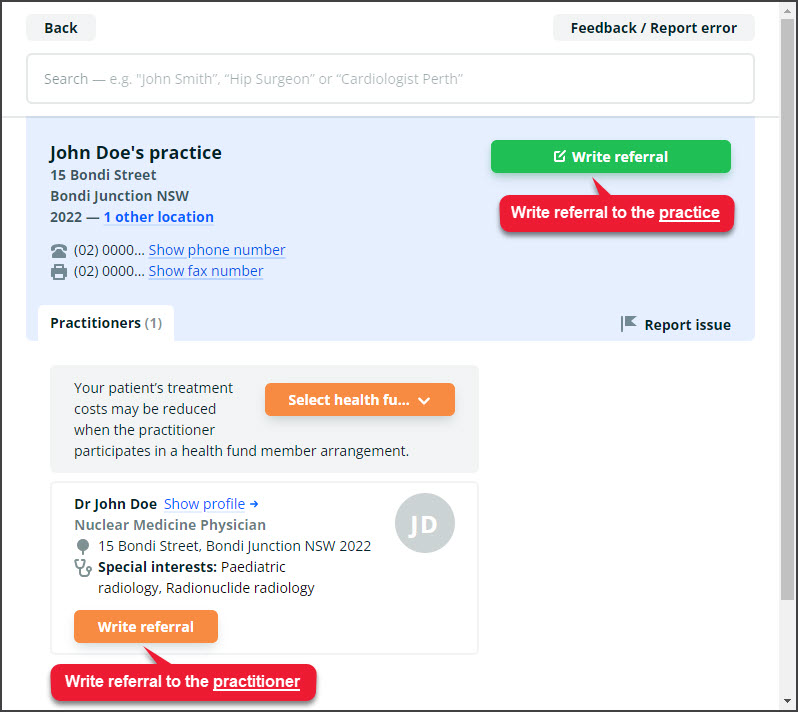 Scenario 3: To the practice or practitioner from the practice group page.
- The practice or practitioner will be added as a recipient of the referral or letter.
These are the fields next to the Address book/search icon.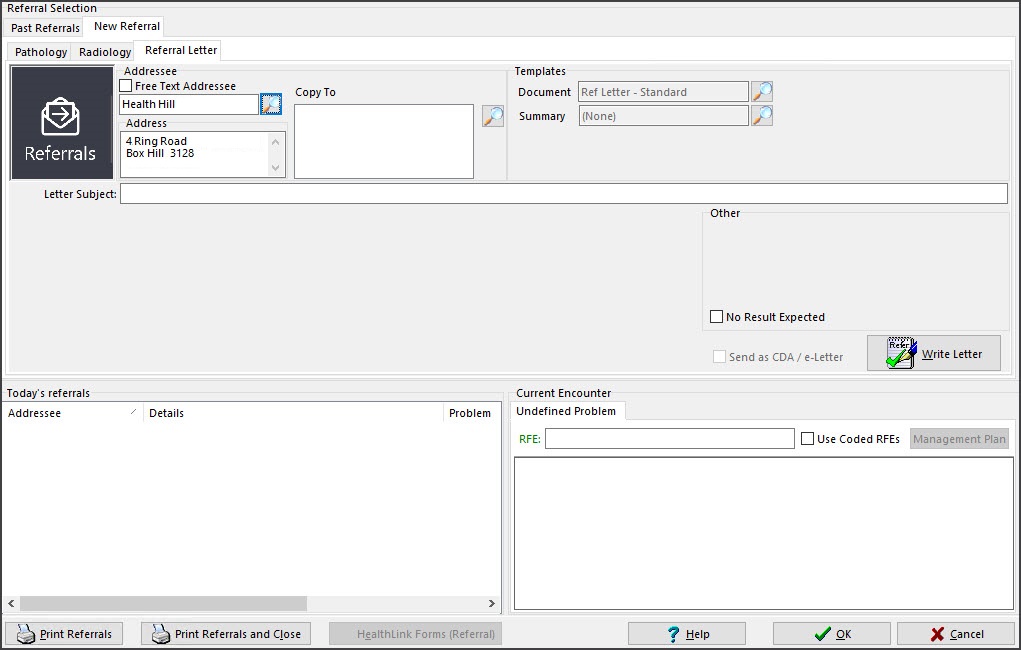 Complete the letter or referral.
 Scenario 2: To the practice or practitioner from the practice page.
 Scenario 3: To the practice or practitioner from the practice group page.
